 Where to Eat Near Penn Station That Isn't a Chain
US Open 2026
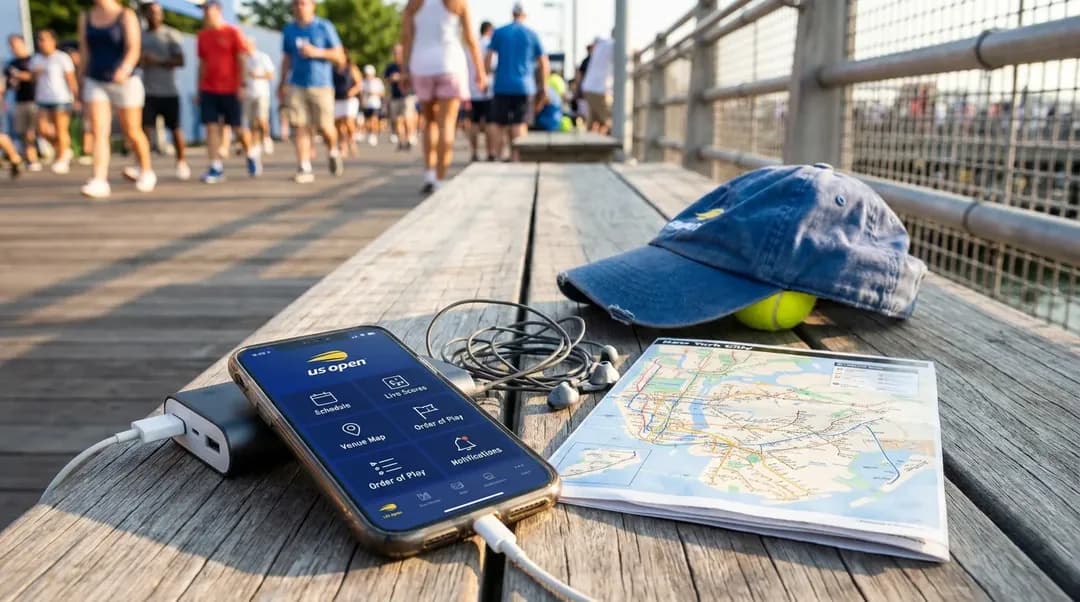
US Open App Settings Fans Should Check First
Set up app alerts, court follows, maps, and battery habits before leaving home so your phone supports your US Open day instead of distracting from it.
The app decision that matters most is not whether to open it outside the gates; it is deciding before you leave home what deserves your attention once the day gets busy. A US Open visit can involve tickets, lines, friends moving in different directions, court changes, food stops, photos, transit apps, and a phone battery that has to last until the ride back. If every alert is on, your lock screen can become a running distraction. If every alert is off, you may miss information that would have helped you choose your next court or avoid unnecessary walking. The better setup is selective: match notifications, maps, and battery settings to your ticket, your group, and the kind of tennis day you want.
Text Karpo for a current, low-friction plan for us open app settings fans should check first—including timing, route checks, and practical options that fit your day.
Choose Alerts Before Leaving
Open notification settings while you are still on a reliable connection. Separate alerts that affect your movement from alerts that only satisfy curiosity. Useful interruptions may include ticket or entry messages, schedule-related updates, and court information tied to players or matches you are actually tracking. Less useful interruptions may include broad news pushes, highlight alerts, or promotional messages that can wait until you are sitting down or heading home.
If the app offers categories, resist the all-or-nothing choice. A fan planning to roam the grounds may want more court and schedule alerts than someone with one reserved session who mainly needs ticket access and a map. A group with children may prioritize entrances, restrooms, guest services, and meeting points. A fan who wants a calmer day may prefer to check scores manually between matches instead of feeling buzzes during every changeover.
- Turn on ticket, entry, or schedule alerts if those options are available and relevant to your session.
- Follow only the players, matches, or courts you truly plan to track.
- Mute broad news or promotional alerts if you want fewer lock-screen interruptions.
- Allow time-sensitive notifications only for updates you are comfortable receiving during live tennis.
Set Court Alerts Carefully
Court alerts work best when they support a plan rather than replace one. Before leaving, decide whether your day is stadium-first, outer-court focused, practice-court oriented, or a mix. Then set alerts around that plan. If you enjoy competitive matches more than specific names, court updates can help you notice when a match gets close. If you hope to see a particular player, alerts may help you react to posted information, but they should not be treated as a guarantee of participation, timing, court assignment, or result.
A good habit is to check court status at natural pauses: before entering the grounds, after a match ends, before buying food, and before starting a long walk. That rhythm keeps you informed without turning every point into a phone check. For groups, assign one person to be the schedule checker so everyone is not draining battery and duplicating the same task. If you split up, agree on a simple meeting point first, then use alerts to decide whether to stay put or move.
Do not let an alert send you sprinting blindly across the grounds. Tennis schedules can shift because matches run long, weather affects play, or courts clear at different speeds. When a notification appears, check the court location, likely crowd flow, and your group’s needs before moving. The app is most useful as a guide for better choices, not as a command center for every minute of the day.
Make Maps Work Faster
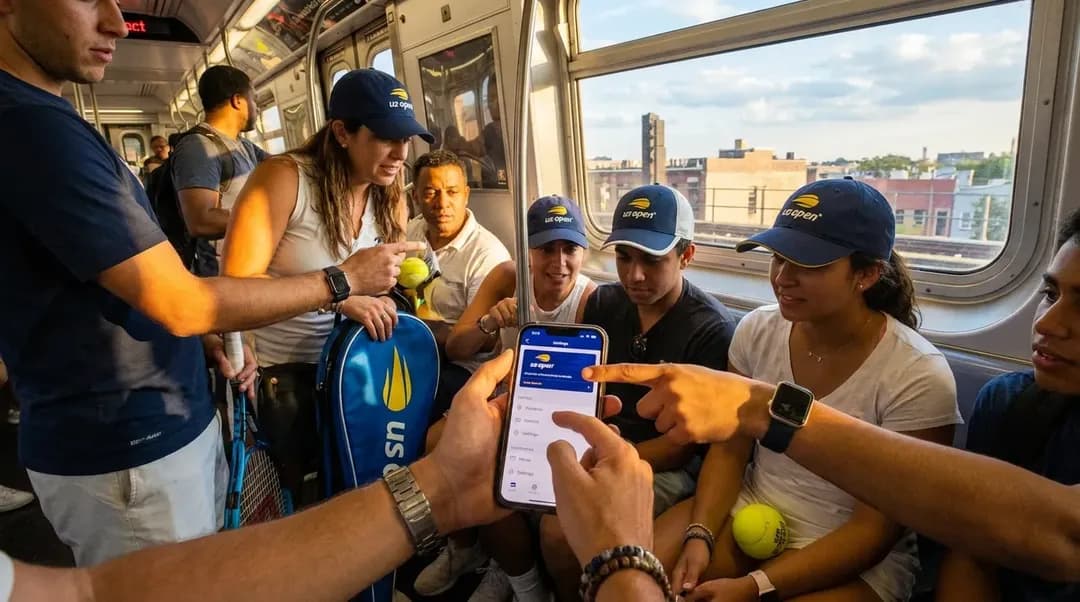
Maps become most valuable when you are tired, late, or trying to meet someone. Before you leave, open the official venue map and learn the basic shape of the grounds. Find your likely entrance route, your assigned stadium or first target court, nearby restrooms, guest services, concessions, and exits. You do not need to memorize every path, but you should know where you are going first and where your group can regroup if the first plan becomes crowded.
Keep the map easy to reach. Put the US Open app on your home screen for the day, or place it near your ticket, transit, wallet, and messaging apps. A screenshot can help with basic orientation if service slows in a crowd, but it should not replace live app information when you need current schedules or updates. Use screenshots for landmarks and meeting points, not for anything that may change.
Treat the map as a time-management tool, not just a rescue tool after you are lost. A short route on a small screen can feel longer when thousands of people are moving through the same area. Before leaving a court, check whether the next stop is truly nearby and whether you are creating unnecessary backtracking. If you are balancing tennis, food, shade, and a meet-up, a quick map check before moving can save both time and battery.
Stretch Phone Battery
Battery life is part of the app setup. A phone that holds tickets, payments, messages, photos, maps, court alerts, and transit options should not start the day half-drained. Charge fully before leaving, then reduce the background work your phone does on site. Live scoring, location services, cameras, social media, and repeated map loading can all compete for power, especially when the phone is searching for signal in dense crowds.

Set battery preferences before arrival so you are not hunting through menus while standing in a line. Low power mode can help, but check whether it limits the alerts or background activity you actually want. Review background refresh, location access, screen brightness, and camera habits. If you plan to take many photos or videos, remember that your camera can drain power quickly, especially with a bright screen.
- Arrive with a full charge and, if you use one, a charged portable battery that complies with current venue rules.
- Lower screen brightness or use auto-brightness instead of leaving the display at maximum.
- Limit background refresh for apps you will not need during your session.
- Set location access to while-in-use or off for apps that do not need constant tracking.
Plan group communication in advance. One shared text thread is easier than scattered messages across multiple apps. If someone is unfamiliar with the grounds, send the meeting point or a map screenshot before arrival. Clear plans reduce repeat calls, repeated map loading, and long message chains from noisy walkways. If your group plans to split up for different courts, agree on when to check the thread and when to stop texting and simply meet.
Practical Notes
For “US Open App Settings Fans Should Check First,” the useful 2026 calendar anchor is August 23 through September 13, with singles main-draw play beginning August 30. Planning advice: shortly before travel, confirm the official schedule, visit information, gate details, transit conditions, and venue rules because published details can change. Before acting on “US Open App Settings Fans Should Check First,” recheck the official security page; its current limit is one searchable bag per guest, no larger than 12 by 12 by 16 inches. Before leaving home, update the app, sign in if needed, make sure your tickets are accessible as instructed, choose only the notifications you want, and open the map once on Wi-Fi. The goal is simple: let the phone handle useful details while the tennis stays at the center of the day.
Tags: #USOpen2026 #Tennis #NewYork #Queens #FlushingMeadows #USOpenGuide #TennisFans #SportsTravel #NYCEvents #HardCourt #KarpoFinds #Karpo
Sources consulted: usopen.org — Official reference · usopen.org — Official reference · usopen.org — Official reference
All trademarks are the property of their respective owners.
Ask Karpo first
Want to know what is confirmed, when to show up, and what is actually open to the public? Ask Karpo for the latest US Open updates and a practical New York plan for us open app settings fans should check first.
Ask Karpo for more information.
Keep reading
- Where to Eat Near Penn Station That Isn't a Chain
 Andytown Coffee in the Outer Sunset: The Snowy Plover Explained
- Best Things to Do in Chicago: What the City Gives Away